

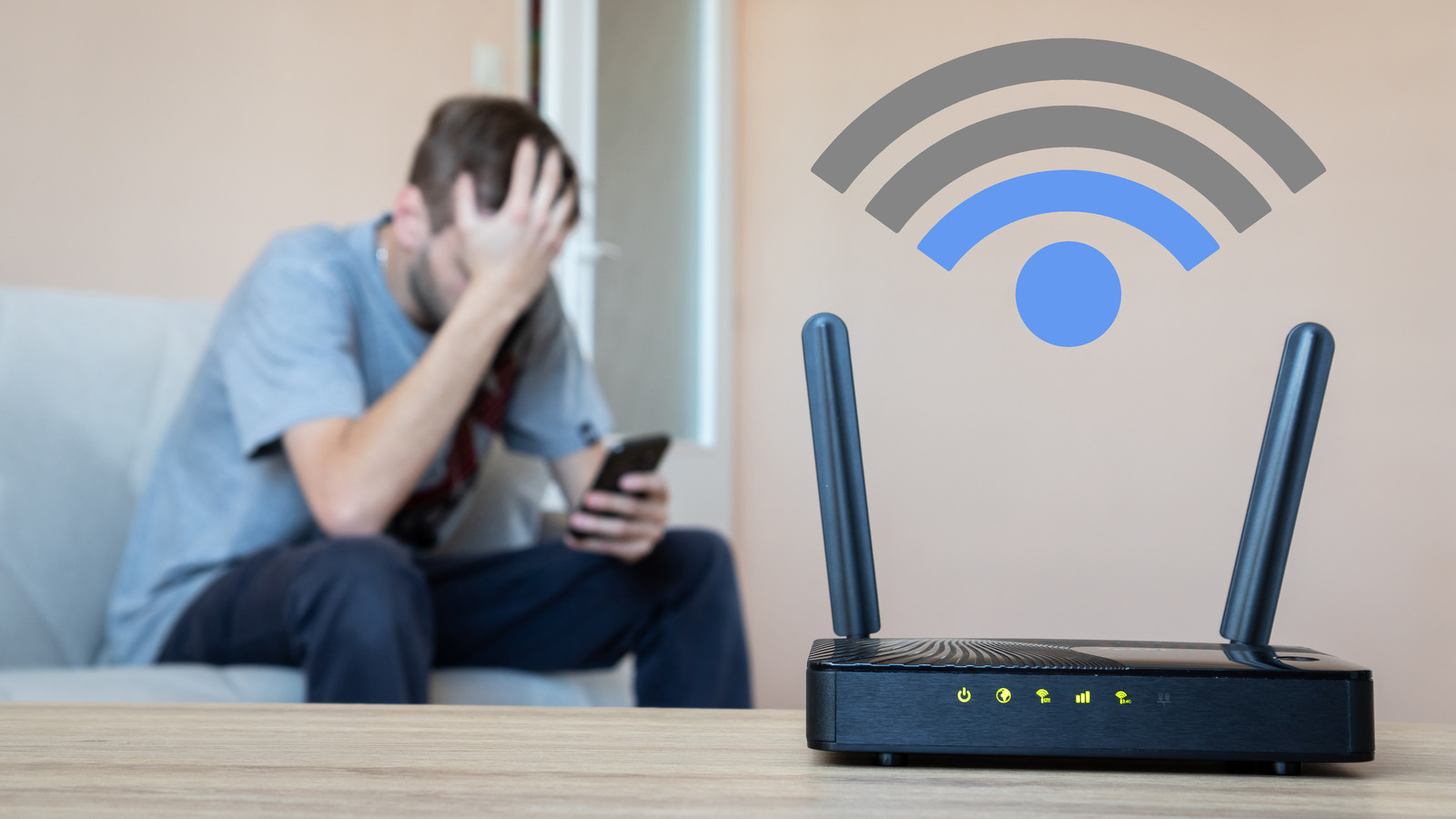
Is your internet suddenly slow for no obvious reason? Does the Wi-Fi keep dropping, or are your devices disconnecting unexpectedly? The issue isn’t always your line or service provider.
In many cases, the explanation is simpler: more devices may be connected to your network than you realize. The good news is that checking is easy — and fixing it is even easier.
The First Warning Signs
Before diving into technical settings, look for these common red flags:
- A noticeable drop in speed when you’re not streaming or downloading large files.
- Constant activity on the router (flashing lights) even when no device is in use.
- Frequent disconnections or difficulty connecting.
- Unknown devices appearing in the “connected devices” list.
If two or more of these signs occur together, it’s worth investigating.
The Safest Method: Check Through Your Router
The most reliable way to confirm who is connected is to access your router’s management panel.
- Log in to your router’s admin page (the address is usually printed on a sticker on the device).
- Look for sections such as Connected Devices, Device List, DHCP Clients, or Clients.
- Review the list of devices, including their names, IP addresses, and MAC addresses.
Keep in mind that many devices appear under generic names like “Android,” “Generic,” or “Unknown.” Before assuming an intrusion, take time to identify them properly.
How to Identify Your Own Devices
To avoid confusion:
- Temporarily turn off Wi-Fi on your smartphone and see if it disappears from the list.
- Do the same with your laptop, tablet, or smart TV.
- Don’t forget devices like smartwatches, speakers, gaming consoles, cameras, or smart plugs.
If, after checking everything, an unfamiliar device remains connected, there’s a strong chance someone is using your network without permission.
What to Do Immediately
If you find a suspicious device, take the following steps:
1. Change your Wi-Fi password
Choose a strong password (at least 12–16 characters with letters, numbers, and symbols).
2. Change the router’s admin password
Many users forget this step and leave the default credentials unchanged — a major security risk.
3. Enable WPA2 or WPA3 encryption
In the security settings, select WPA2-PSK or, ideally, WPA3. Avoid outdated protocols such as WEP.
4. Disable WPS
The “quick connect” button is convenient but can weaken security. Turn it off if you don’t need it.
5. Restart the router
After making changes, reboot the router. All connected users will be disconnected and will need the new password to reconnect.
How to Prevent It from Happening Again
For extra protection:
- Set up a Guest Wi-Fi network for visitors instead of sharing your main password.
- Check connected devices once a month.
- Install firmware updates when available — they often patch security vulnerabilities.
Unauthorized Wi-Fi use doesn’t always look like “hacking.” More often, it simply appears as slow internet. With a quick check and a few targeted security adjustments, you can determine whether there’s a problem — and resolve it within minutes.